Welcome to Claude
Spend less time on the work around the work.
What is Claude?
Claude is an AI assistant made by Anthropic. Think of it as a capable thinking partner you can talk to in plain English — no special skills required. If you can write a Slack message, you can use Claude.
Here's the difference between Claude and a search engine: Google finds you a link. Claude reads, thinks, and responds — like a colleague you can explain a messy situation to and actually get useful help back.
You can hand it a rough draft and ask it to clean it up. You can describe a problem you're stuck on and ask it to think through it with you. You can paste in a long document and ask it to summarize the parts that matter. You don't need to learn special commands or formatting — just talk to it.
What makes our setup different from using Claude on your own: the Projects we've built are loaded with FG-specific context — our platform, our customers, our voice. You don't start from zero every time. And with connected tools, Claude can pull from the actual places your work lives.
Writing tasks
First drafts, rewrites, proofreading, rephrasing. Paste in rough notes — get back a clean, structured doc.
Thinking through problems
Stuck on how to handle a tricky customer situation? Need to figure out the right way to structure a process? Claude is good at thinking out loud with you.
Documentation
Creating SOPs, updating internal guides, turning messy Loom notes into something a teammate can actually follow.
Customer comms
Paste in a draft response for a difficult customer and ask Claude to help you find the right tone — firm, clear, empathetic — without you having to find the words when you're already frustrated.
Searching your tools
With connected tools, Claude can search Slack, Google Drive, Gmail, and more — so you can ask "did anyone report this bug recently?" instead of digging through channels yourself.
Making sense of data
Compiling exports from multiple tools, cleaning up messy spreadsheets, spotting patterns in a data dump — the stuff that usually takes an afternoon.
Repurposing content
Podcast transcript → email series. Webinar notes → social posts. Teaching content → help doc. Claude is fast at giving existing content a second life.
Summarizing & briefing
Drop in a long Slack thread, a support ticket history, or a meeting transcript and ask for the short version — the key decisions, the open questions, the next steps.
Scheduling & planning
Drafting project timelines, thinking through launch sequencing, building out a content calendar — Claude can hold the big picture while you fill in the details.
And this is just what it looks like without any connected tools. Keep reading.
Connected tools
Claude can connect directly to the tools we already use — Slack, Google Drive, Gmail, HelpScout, and more. When a connector is active, you can ask Claude to search across that tool without leaving the conversation. No copy-pasting, no tab-switching.
For example: "Check the hl-fg Slack channel for any recent reports of [bug]" or "Search my Google Drive for the Q1 promo brief." Claude goes and looks, then brings back what it finds.
You can connect any of the available connectors yourself — find them via Settings → Connectors or the "Search and tools" menu at the bottom-left of any chat. Each one walks you through a quick auth step to connect your own account.
A few things to know: connectors you set up are personal to your account. If you're using a shared project account (like the CS team's support@ login), don't connect your personal accounts there — those connections stay separate.
Need a connector that isn't in the list? Reach out to Amber. The directory is growing fast and we can add new ones at the org level — if it's a legitimate tool, the answer is almost certainly yes.
Skills
Skills are pre-built instruction sets that give Claude specialized capabilities for specific tasks — things like creating a certain type of document, following a specific formatting standard, or executing a repeatable multi-step workflow. Think of them like trained SOPs that Claude already knows how to follow.
We have a library of skills available at the org level that you can use right now. But you can also propose a new one.
A good candidate for a custom skill is any task you find yourself prompting Claude to do the same way, over and over — where you're essentially re-explaining the same instructions every time. If you've landed on a prompt that reliably produces a great result for a specific recurring task, that's a skill waiting to happen.
You don't build the skill yourself — but you can start the process. Open a blank chat, describe the task the skill should handle, and ask Claude to help you draft the skill instructions. Then share the output with Amber. She'll review it, test it, and add it to the org library if it's solid.
Why the review step? Skills can execute code, so a poorly scoped one can have unintended effects for everyone who uses it. It's a quick check — not a bottleneck. The goal is for your idea to become something the whole team benefits from.
Anything that goes to a customer or gets published: read it first. Claude doesn't know things it wasn't told, and it can state something wrong with total confidence. Your judgment is still the final step on anything that represents FG externally.
Repetitive, low-stakes tasks? Let Claude handle them so you can focus on the parts that actually need you. Formatting meeting notes, converting bullet points into a structured doc, drafting the first version of something you'll rewrite anyway, summarizing a long thread — these are exactly the tasks worth handing off almost entirely. If you find yourself doing the same type of task over and over, that's a signal: there's probably a way to make Claude do the heavy lifting so you're just reviewing and refining.
Something unclear in this section? Ask or flag it here →
How to access it
Claude lives at claude.ai. Any browser, any computer — no app required to get started.
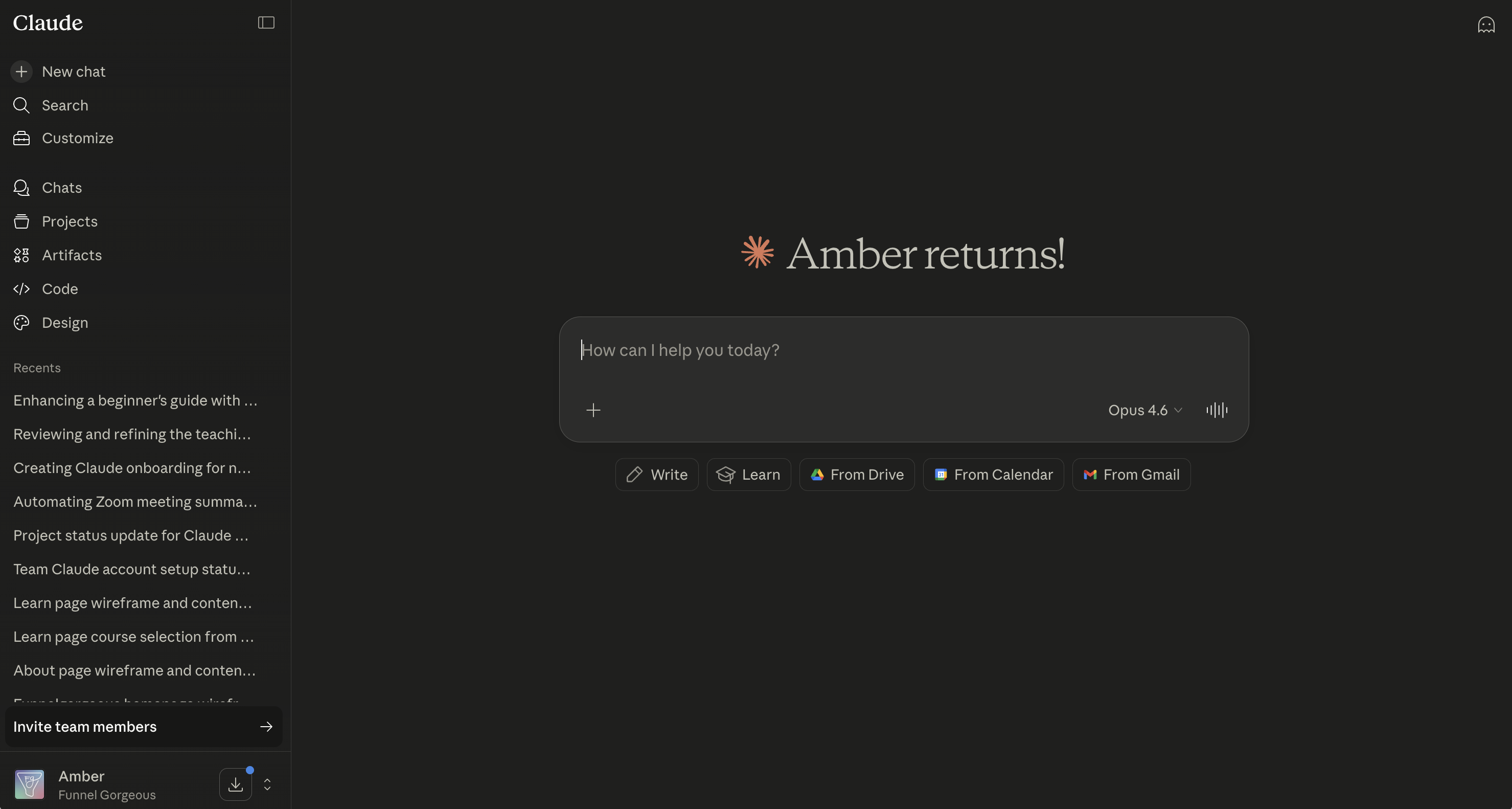
Works on any computer, any browser. Easiest way to switch between your FG team account and a personal account if you have one. Start here.
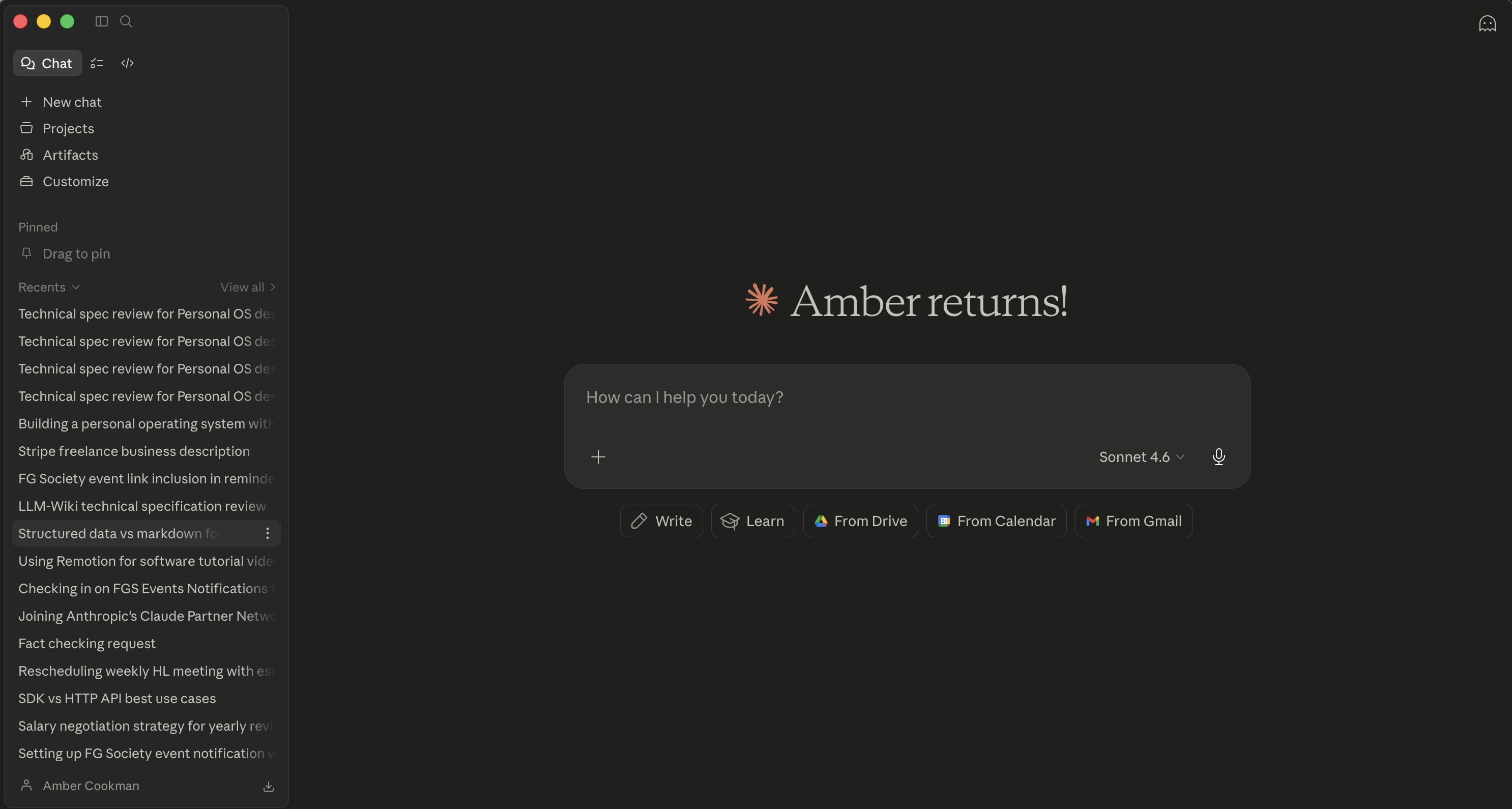
Handy if you'll use Claude daily and want it outside your browser tabs. One caveat: the desktop app doesn't have easy account switching — if you also have a personal Claude account, stick to the browser.
CS team members use Claude through the shared [email protected] account during project time blocks. There is no password — enter the team email, and Claude will send a login code or link to HelpScout. Enter that code (or click that link) to finish signing in.
One ground rule: when using the shared account, do not connect your own personal Google, Slack, or other tool accounts to it. The shared account will have its own dedicated tool connections as we build them out — keep your personal logins separate so there's no crossover when those go live.
Projects: your workspace inside Claude
Here's the thing about AI tools that most people don't realize at first: the more context Claude has, the more useful it is. A blank chat knows nothing about us — our platform, our customers, our voice. A Project-based conversation already has that context loaded, so you skip the explaining and get straight to the work.
The habit to build: when you open Claude, ask yourself which Project fits what you're doing — and start there. You'll find your Projects in the left sidebar. If you start a chat and realize later it belongs in a Project, you can move it: click the three dots next to the chat title in your Recents list.
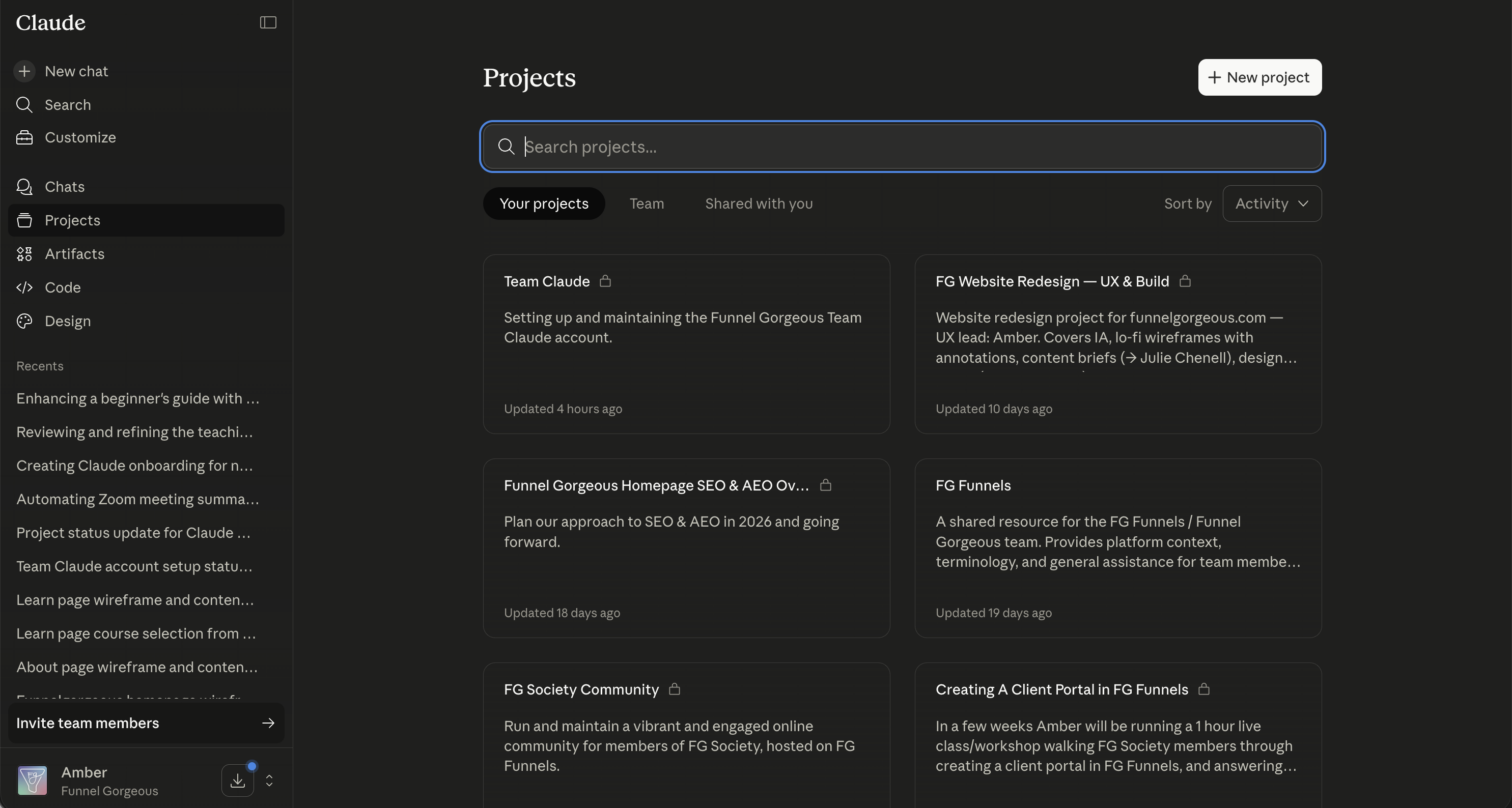
FG Funnels
General FG Funnels® platform knowledge and company context. Good starting point for documentation, customer scenarios, support writing, and anything broadly FGF-related.
FG Funnels — Backend
Technical reference for funnel builders. CSS, JS, platform-specific patterns, and implementation details.
Your own projects
You don't have to wait for one to be set up for you — you can create your own. See below.
Learn More About Working With Projects
How projects actually work
▼Before you create or use a shared project, it helps to understand what's actually happening under the hood — because a few things aren't obvious and will catch you off guard if you don't know them.
The project instructions (the setup prompt) and any uploaded files are available to everyone in the project, in every conversation. If one person edits the instructions or adds a file, that change affects everyone immediately — there's no versioning or approval step. This is powerful for keeping a team aligned, but it means shared projects need a designated owner who controls the setup.
Your individual conversations are yours — teammates can't see your chat history inside a shared project. Claude also can't see what your teammates have been asking about in their own chats. Shared context = the project setup. Private context = everything you've actually said in your conversations.
This one surprises people. Each project — and each blank chat — is its own isolated context. If you reference something from a different project ("remember that SOP we built last month?"), Claude won't know what you're talking about. The info has to be in this project to be usable here.
You may notice Claude does have a memory feature — it picks up a few personal details from your standalone chats (things like your role or preferences) and surfaces them lightly going forward. It's a loose background summary, updated daily, and it's personal to you — not shared with teammates. It also doesn't apply inside projects at all; projects have their own separate context space. It can be a nice quality-of-life thing for casual use, but it's not reliable enough to count on for real work context. If Claude seems to be missing something it should know, don't wait for memory to catch up — paste it in, upload it as a file, or add it to the project instructions. That's the fix every time.
When a project has a tool connected — say, Slack — it shows up for everyone in that project. But here's what that actually means: each person using it has connected their own Slack account. Claude is accessing your Slack when you use it, and your teammate's Slack when they use it. The tool is shared at the project level; the account behind it is personal to each user. Think of it like a shared doorway that leads to your own room. Tools aren't carried over from other projects — each project has its own connections. If you need a specific tool added to a project you're building, reach out to Amber.
Shared projects need one owner
▼If two or more people will be using a project together, one person should own the setup — writing the instructions, uploading the files, and being the one who makes changes when something needs updating. This isn't a bureaucracy thing — it's just how you avoid two people spending time building the same project in parallel, or someone editing the instructions mid-conversation and accidentally changing the experience for a teammate who's actively using it.
Before you start building a project that involves other team members: check in first. If it already exists or someone else is building it, join that one instead of starting fresh.
Creating a project
▼We're a small team and everyone wears a lot of hats. If you find yourself re-explaining the same context over and over — your role, the platform, what you're working on — that's the signal to create a project. You shouldn't have to do that every time.
1. Create it — click "New Project" in the left sidebar. Give it a name that makes it obvious what it's for.
2. Write the project instructions — this is the context Claude loads at the start of every conversation in this project. Describe who you are, what this project is for, what Claude needs to know upfront, and how you want it to respond. Be specific. Vague instructions produce vague results.
3. Upload reference files — anything Claude should be able to pull from: SOPs, templates, style guides, product docs, examples of good work. Think about what a new hire would need to read to understand this area of the business. That's what goes here. Files you don't upload aren't available — Claude can only work with what's in the project.
4. Test it — open a conversation inside the project and see if Claude responds the way you intended. Adjust the instructions based on what you notice. This is a normal part of the process, not a sign something is broken.
Not sure what to write for the instructions, or what files to gather? Use Claude to figure it out. Open a fresh chat — outside any project — paste in everything you know, and ask Claude to interview you until it has what it needs. Here's a starter prompt you can copy and adapt:
I'm setting up a Claude Project and need your help. I want you to do two things: 1. Interview me — ask me questions one at a time until you have enough to write strong project instructions and a list of reference files I should gather and upload. 2. Then give me: (a) a draft of the project instructions, and (b) a list of the specific documents, templates, or info I should upload as project files. Here's what I know so far: - My role at FG: [your role] - What this project is for: [the type of work / who will use it] - What Claude should always know in this project: [recurring context, platform details, customer info, anything it needs every time] - How I want Claude to respond: [tone, format, things it should always or never do] - Who else might use this project: [just me / shared with teammates — if shared, note that] Start by asking me whatever you need to fill in the gaps.
Once you have a working project, reach out to Amber — she can help you optimize the instructions, connect tools, or identify things you might have missed. The goal is for you to build the foundation; she can help you take it further if and when you need to.
Something unclear in this section? Ask or flag it here →
Making Claude yours
There are two account-level settings worth knowing about — separate from Projects. They apply to you personally, not to the whole team, and most people never set them up. Which means most people spend more time per conversation than they need to.
Where does what go? · Settings map
Profile preferences
▼This is a text field in your account settings where you tell Claude who you are and how you want it to respond — once, and it applies to every conversation you have going forward. You stop re-explaining yourself every time you open a new chat.
Find it at: click your initials (bottom-left) → Settings → Profile → "What preferences should Claude consider in responses?"
Your role and context — what you do, what team you're on, what kinds of tasks you use Claude for most. This is how Claude calibrates depth, terminology, and relevance.
How you like responses — do you want direct answers first, then detail? Bullet points or prose? Short unless you ask for more? Spell it out once here.
What to skip — if you're technical in a specific area, tell it not to over-explain the basics. If you hate corporate hedging language, say so.
Behavior you always want — push back when something seems off, ask clarifying questions before assuming, flag when a response is incomplete. These are the things you'd otherwise have to ask for every single time.
Keep preferences to universal rules — things that should apply no matter what you're working on. Project-specific context (platform details, specific customers, task-specific instructions) goes in project instructions instead. If you stuff too much into preferences, they get diluted and Claude treats them less reliably.
Not sure what to write? Use Claude to draft it for you. Open a blank chat, paste in this prompt, and answer its questions:
I want to write my Claude Profile Preferences — the account-level setting that tells Claude who I am and how to respond to me across all my conversations. Ask me questions one at a time to learn: 1. My role and what I primarily use Claude for 2. How I like responses structured (length, format, tone) 3. Things Claude does by default that I find unhelpful 4. Context that's always true for me and saves time if Claude already knows it 5. Behaviors I always want — like pushing back when something seems off, or asking before assuming Once you have enough, write my preferences as a short, direct paragraph or two that I can paste into Settings → Profile.
Styles
▼Styles are a separate setting — they control the format and tone of how Claude responds, independently of the context in your preferences. You can switch them mid-conversation as needed.
You'll find them via the "Search and tools" menu at the bottom-left of any chat window → "Use style." The presets — Normal, Concise, Explanatory — cover most use cases. You can also create a custom style by describing what you want, or by uploading a sample of writing you want Claude to match.
A practical use: switch to Concise when you're firing off quick questions and don't need the full treatment, or Explanatory when you're learning something new and want Claude to actually walk you through it.
What to ask Claude
You talk to Claude like you'd talk to a capable colleague — not like you're writing a command. No magic words, no special formatting. The more specific you are about what you actually need, the better the output.
Here are real examples based on actual work different team members do:
Use Claude to turn rough notes and tribal knowledge into clean, usable support docs — the ones that actually help customers help themselves.
Use Claude to make sense of data pulled from multiple sources, and to give existing content a second life without starting from scratch.
Claude can help write copy for templates and snapshots, think through internal build decisions, and use connected tools to cross-check issues before going down a rabbit hole.
These approaches work for almost any task, regardless of role. When in doubt, start with one of these.
It will happen. The response will miss the mark, or be too long, or use a word you'd never use. This is normal — and fixable. Just tell it what to change: "Make it shorter," "less formal," "this word feels off — try something else," "that's not accurate, here's how it actually works." Claude will adjust. You're not starting over — you're iterating. That back-and-forth is where the good stuff happens.
Do's and don'ts
Most of this is common sense, but a few things are worth being explicit about.
✓ Good to share
Customer scenarios and issues — use first names only, not full contact info
Platform behavior, bugs, and troubleshooting details
Draft content, communication templates, internal docs
Process questions, workflow design, brainstorming
Business strategy and planning discussions
✗ Never paste in
Customer passwords, payment info, or credit card numbers
API keys, access tokens, or secret credentials of any kind
Social Security numbers or government-issued IDs
Full customer databases or bulk exports with personal info
Internal financial records or compensation details
FG Funnels® changes constantly. If Claude tells you something about platform behavior that doesn't match what you're seeing — trust what you're seeing. You can correct Claude directly: "That's changed — here's how it actually works now." That's not a flaw in the tool, that's just you being the expert in the room. It also helps us know what context docs need updating.
Getting started checklist
Everything you need to do to be set up and ready to go. Your progress saves automatically — come back anytime to pick up where you left off.
Accept your Team invitation — check your work email for an invite and set up your account. CS team: you'll log in using the shared [email protected] address — no password needed, Claude sends a code or link to that inbox to complete sign-in.
Log in at claude.ai using your FG team credentials (or the shared support@ login if you're on the CS team).
Find your Projects in the left sidebar. Open each one you've been added to and read the project instructions before starting your first conversation.
Try one real task — open the FG Funnels Project and ask Claude to help with something actually on your plate this week. Don't test it with a fake question. Use a real one. That's the fastest way to get a feel for it.
Set up your personal preferences — go to Settings → Profile and fill in the preferences field. It takes five minutes and makes every conversation after it better. See Section 04 for what to include and a boilerplate prompt if you need help writing it. This only affects your own account.
You're all set. Welcome to the team's new workflow.
Quick reference
The stuff you'll forget and want to look up later.
Where preferences live
Click your initials (bottom-left) → Settings → Profile → "What preferences should Claude consider in responses?"
Applies to every conversation, inside and outside projects.
Where to switch styles
"Search and tools" menu (bottom-left of chat) → "Use style."
Presets: Normal, Concise, Explanatory. Can also create custom styles.
How to connect a tool
Settings → Connectors, or the "Search and tools" menu in any chat. Each connector walks you through auth.
Connections are personal to your account — don't add personal logins to shared accounts.
The project owner rule
Shared projects need one owner who controls setup. Before building one that involves teammates, check if it already exists.
Instruction edits affect everyone immediately — no versioning.
When Claude is wrong
Just tell it: "That's not right — here's how it actually works." Claude adjusts. Iterating is the point, not a failure.
FG Funnels® changes fast — trust what you're seeing over Claude's answer.
Reach out to Amber when…
You need a new connector, want to propose a skill, hit consistent usage limits, or have an idea for automation.
Also: if Claude consistently misses the mark even after correcting it.
Tell us what's working
We're building this as we go — and honestly, that's the only way to do it. We'd rather launch something good and improve it than wait until it's perfect and miss six months of usefulness.
But that only works if we know how it's actually landing. If something isn't working for you, that's not a you problem — it's probably a setup problem we can fix.
Reach out to Amber if you're
Regularly needing a tool or service that Claude could connect to but doesn't have access to
Consistently hitting usage limits during normal work hours
Consistently getting responses that miss — wrong tone, wrong context, just not helpful — even when you've tried correcting it
Doing the same type of task over and over and wishing there was a better, more tailored setup for it
Unsure whether Claude can even help with something — ask before assuming it can't. The answer is usually "yes, here's how."
Have an idea for automating or streamlining something but aren't sure if it's possible or where to start — bring the idea. Amber can help you figure out whether it's feasible and how to actually build it.
The goal is for this to genuinely make your work easier — not just add another tool to manage. If it's not doing that, that's useful information. Not a failure.
💬 Have a question or hit a wall? You don't have to wait until it feels urgent enough to Slack someone. Submit it here → — takes 30 seconds, and it helps make this guide better for everyone on the team.
Want to go deeper?
These free courses from Anthropic are worth bookmarking if you want to build a stronger foundation — none of them are overly technical.
- Claude 101 — start here if you want the big picture on how Claude works
- AI Fluency: Framework & Foundations — good for building mental models around how to think about AI at work
- AI Capabilities and Limitations — useful for understanding where Claude is strong and where to stay skeptical